How to Add Stylish Hindi Fonts in Alight Motion
Complete 2026 guide with step-by-step instructions, font preview tool, and best practices for adding beautiful Hindi typography to your Alight Motion videos.
Try Font Preview ToolWhy Hindi Fonts Matter in Alight Motion
Hindi is the third most spoken language globally with over 600 million speakers. Adding stylish Hindi fonts to your Alight Motion projects can significantly increase engagement with Indian and Nepali audiences, make your content more accessible, and add cultural authenticity to your videos.
Unlike English fonts, Hindi (Devanagari script) has unique typographic requirements with conjunct characters, matras (vowel signs), and specific ligatures. Choosing the right font ensures your text remains legible and visually appealing in motion graphics.
Pro Tip: Always test Hindi fonts with common words like “प्रशंसा” (appreciation), “स्वागत” (welcome), and “धन्यवाद” (thank you) to check character support before using them in your Alight Motion projects.
Step-by-Step: Adding Hindi Fonts to Alight Motion
Method 1: Using Built-in Hindi Fonts (Easiest)
- Check Available Fonts: Open Alight Motion and create a text layer. Tap the font selection menu to see pre-installed Hindi fonts like Noto Sans Devanagari or Devanagari MT.
- Select Hindi Font: Scroll through the font list and choose a Hindi-compatible font. Some devices show Hindi fonts with “Devanagari” or “Hindi” in their names.
- Type Your Text: Switch to a Hindi keyboard (Gboard, SwiftKey) and type your text directly in Alight Motion. The font will render Hindi characters correctly.
- Style Your Text: Adjust size, color, spacing, and add animations as you would with English text.
Method 2: Installing Custom Hindi Fonts (Advanced)
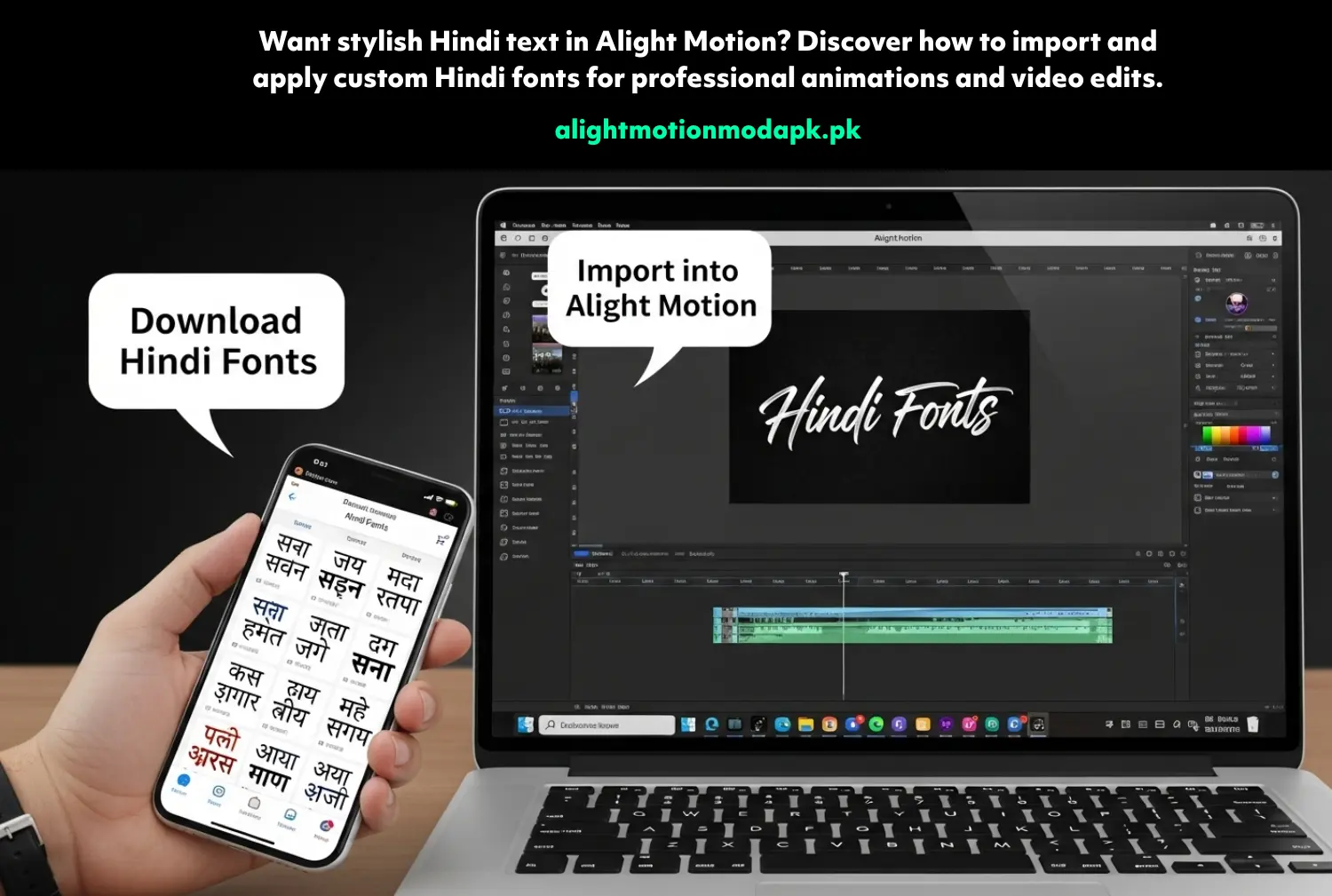
- Download Hindi Font Files: Find and download .ttf or .otf Hindi font files from reputable sources like Google Fonts, FontSquirrel, or DaFont.
- Install on Your Device: On Android, use a font installer app like “iFont” or copy font files to Fonts folder. On iOS, use apps like “AnyFont” or install profiles from trusted websites.
- Restart Alight Motion: Close and reopen Alight Motion to make newly installed fonts appear in the font selection menu.
- Apply and Animate: Select your custom Hindi font, type your text, and apply animations. Test with complex Hindi words to ensure proper rendering.
Hindi Font Preview Tool
Use this interactive tool to preview how different Hindi fonts will look in your Alight Motion projects. Type any Hindi text and see it rendered in various font styles.
Hindi Font Preview Tool
Test fonts before using them in Alight Motion
Best Hindi Fonts for Alight Motion
Free Hindi Fonts (Google Fonts)
These fonts are free, high-quality, and work perfectly in Alight Motion:
- Noto Sans Devanagari: Clean, modern, and supports all Hindi characters. Best for titles and body text.
- Tiro Devanagari Hindi: Elegant serif font perfect for formal videos and educational content.
- Hind: Simple and highly readable, excellent for fast-paced social media videos.
- Poppins (Hindi variant): Geometric sans-serif with excellent legibility at small sizes.
Premium Hindi Fonts
For professional projects, consider these premium options:
- Adobe Devanagari: Part of Adobe’s Creative Cloud, excellent for professional motion graphics.
- ITF Devanagari: Modern typeface with multiple weights, perfect for branding.
- Ek Type: Contemporary Indian type foundry with beautiful display fonts.
Font Pairing Tip: Pair a bold Hindi display font (like Noto Sans Devanagari Bold) with a simple English font (like Montserrat) for bilingual titles that look cohesive in Alight Motion.
Common Issues & Solutions
Problem: Hindi Text Appears as Boxes or Missing Characters
Solution: This usually means the font doesn’t support Devanagari script. Switch to a Hindi-compatible font like Noto Sans Devanagari or install a proper Hindi font on your device.
Problem: Font Not Showing in Alight Motion After Installation
Solution: Restart Alight Motion completely. If the font still doesn’t appear, check if the font file is compatible (TTF or OTF format) and properly installed in your device’s font directory.
Problem: Conjunct Characters Not Forming Correctly
Solution: Some Hindi fonts have poor conjunct support. Test with words containing “क्ष”, “त्र”, “ज्ञ” and switch to a better font if issues persist. Noto Sans Devanagari has excellent conjunct support.
Problem: Hindi Text Animation Looks Cluttered
Solution: Increase letter spacing (tracking) to 10-20% and line height to 1.5x in Alight Motion’s text settings. This improves readability for Hindi text in motion.