How To Fix Alight Motion Mod APK Errors Complete Guide 2026
Editing videos and creating animations on your mobile device can be exciting, especially with Alight Motion Mod APK It unlocks premium features and gives you more creative control. However, modded apps can sometimes cause errors, crashes, or lag, leaving you frustrated.
In this guide, we will show you how to fix Alight Motion Mod APK errors step by step. From crashing issues to playback problems, we cover all common errors and provide simple solutions to get your app running smoothly again. By the end, you’ll be ready to create amazing edits without interruptions.
Common Alight Motion Mod APK Errors and Their Solutions
Here are the most frequent problems users face with the Mod APK and how to fix them.
Import Errors
Import errors happen when the XML file is not compatible with your app version. If the file was created in a different or newer version, it may not open in Alight Motion. To fix this, export the XML file from a compatible version and then import it again. Always check version compatibility before.
Export Errors
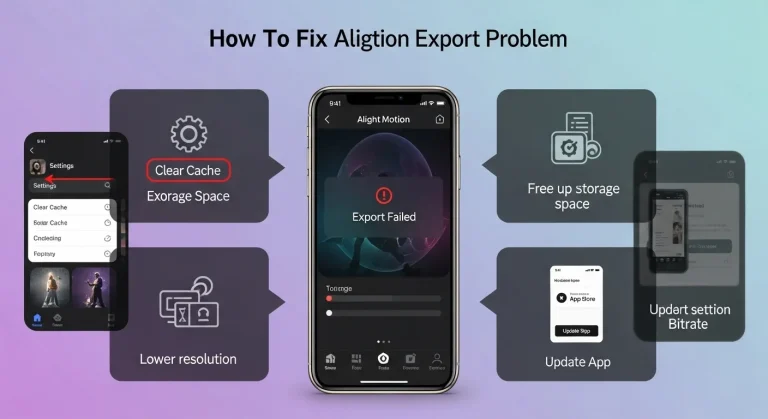
Export errors usually occur when your project is too large or when your device lacks storage or power. Large files, many effects, and high resolution can cause this issue. To fix it, remove extra elements, lower the resolution or frame rate, and make sure your device has enough free storage space before exporting.
Preview Errors
Preview errors occur when your video does not play smoothly inside the app. This mostly happens because of heavy effects or too much cached data. You can clear the app cache from your phone settings. Also, try reducing effects and layers to make the preview smoother.
Keyframe Registration Issues
Keyframes control animation in Alight Motion. If they are not working, you may have placed them on the wrong setting in the timeline. Also, if the keyframe value matches the starting value, no change will appear. Make sure you change the value so the animation can work properly.
Proxy Files Playback Problems
Proxy files help videos play smoothly while editing. If playback is lagging, the proxy files may not be working correctly. You can regenerate proxy files from Project Settings. If the problem persists, turn off proxy files and check if playback improves.
RAM and GPU Limitations
If your phone has low RAM or a weak GPU, the app may lag or crash. Heavy projects need more power to run smoothly. To fix this, remove extra layers and effects, lower preview quality, and close background apps to free up memory.
Error 3565 Fix
Error 3565 is a common issue in Alight Motion Mod APK. It usually happens because of temporary app problems. Go to Settings > Apps > Alight Motion, tap Storage, and clear the cache. Restart the app and check if the problem is fixed.
Black and White Screen Fix
A black or white screen can appear due to a minor glitch or rendering issue. Restart the app and your device first. If you are using a computer, update your graphics drivers. You can also try exporting the video again with different settings.
Troubleshooting Tips and Tricks
These general tips help fix various Alight Motion Mod APK errors:
Extra Tips for Smooth Editing
Final Words
When comparing Alight Motion vs CapCut, Alight Motion Mod APK stands out as a powerful tool for video editing and animation. However, just like CapCut, it can experience errors that slow down your workflow. By following this guide, you can fix common issues such as import/export errors, preview glitches, keyframe problems, proxy playback delays, and error codes like 3565, ensuring a smoother editing experience.