How to Import and Use Hindi Fonts in Alight Motion Complete Guide 2026
Text is a vital part of any video, helping convey messages clearly while adding a personal touch to your content. Alight Motion is a popular mobile editing app that lets you add text overlays with ease. However, when it comes to Hindi, the default font options can feel limited or generic, making your video less visually appealing.
Using custom Hindi fonts in Alight Motion allows you to create professional-looking text in Devanagari script, add a creative flair, and reach a wider Hindi-speaking audience. With the right fonts, your titles, subtitles, and captions can stand out while maintaining clarity and readability. This guide will show you how to find, import, and use Hindi fonts in Alight Motion efficiently.
History of Hindi Fonts in Digital Editing
Early Days of Hindi Fonts
In the early digital era, Hindi fonts were limited to a few basic styles. Most software only supported standard Unicode fonts, which made Devanagari text look plain and uniform. Video creators struggled to add stylistic variety.
Introduction of Custom Fonts
As graphic and video editing grew in popularity, designers started creating custom Hindi fonts. These fonts offered unique styles, ligature support, and artistic designs, allowing editors to enhance the visual appeal of their projects.
Mobile Editing Apps
Mobile apps like Alight Motion began incorporating custom fonts and font import features. This allowed creators to easily bring their favorite Hindi fonts into mobile projects without using a computer.
Trends Hindi Typography
Today, Hindi fonts are highly versatile. Editors can use traditional, modern, or decorative fonts for animation, social media videos, and professional projects. Mobile apps now support font import.
Why Hindi Fonts Matter in Alight Motion
Hindi fonts are specially designed for the Devanagari script. Each font style ranges from traditional and classic to modern and artistic. Alight Motion’s default fonts may not support all Hindi characters or ligatures, leading to text display issues.
Custom Hindi fonts help you:
Downloading and Installing Hindi Fonts
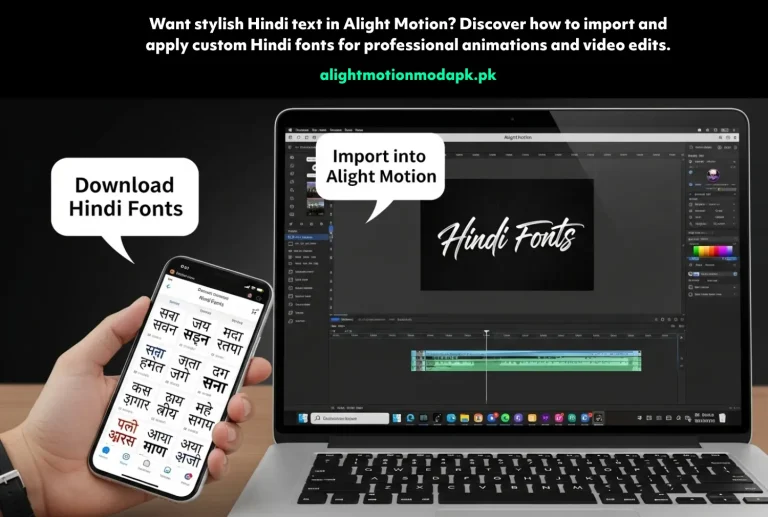
To get started with Hindi fonts in Alight Motion, you first need to download the font files:
Importing Hindi Fonts into Alight Motion
After downloading, follow these steps to import Hindi fonts into your project:
Using Hindi Fonts in Alight Motion
Even after importing, you may need a Hindi font converter app to type in the Devanagari script. Here’s how to add Hindi text:
Tips for Using Hindi Fonts Creatively
Popular Hindi Fonts for Alight Motion
Frequently Asked Questions (FAQs)
Final Words
Alight Motion QR Code Import lets creators easily add Hindi fonts to their projects, helping them express their cultural identity and enhance the visual appeal of their videos. By scanning a QR code, you can instantly download and apply Hindi fonts, making your text more professional, engaging, and readable. This feature simplifies the process of using custom fonts, allowing you to focus on creating high-quality, culturally rich content.